
Ramdani.web.id - A Bash shell script is a small script or program written in the Bash programming language, which is one type of shell in UNIX and Linux operating system environments. Bash stands for "Bourne Again Shell," which is a shell compatible with the Bourne shell (sh), first developed by Stephen Bourne. A shell is a command-line interface used to interact with the operating system and execute system commands.
A Bash shell script is a way to automate tasks in Unix or Linux-based system environments. In a Bash script, you can write a series of commands and instructions that are executed sequentially. This can include basic operations such as managing files and directories, running programs, taking user input, branching (if-else statements), looping, and much more.
Table of Contents
Here are some examples of tasks that can be automated using Bash shell scripts:
- File and directory processing.
- Managing cron jobs (scheduled tasks).
- Handling user input.
- Monitoring logs and system events.
- Installation and updating of software.
- Automating system administrative tasks.
- Running scripts to process data, such as parsing logs or merging files.
The Following Steps to Install Wordpress With Shell Script on VPS
Please clone the script from the following GitHub repository: Click here or you can copy and create a new file on your VPS. Here I am using Ubuntu OS 22.04, make sure your domain has been pointed to the VPS, and do not use a subdomain if you want to use a subdomain in the script options you can remove www on the SSL install code line. It should look like this.
$ certbot run -n --nginx --agree-tos -d $domain -m $emailssl --redirect
1. Clone or Create a New File Named setupwp.sh
Make sure you understand how to run the shell, follow these steps:
If you log in as a regular user, then log in as root to the VPS with the command:
sudo su
#Buat file nama setupwp.sh dengan text editor bebas
vi setupwp.sh
#isi dengan script pada github
#berikan permission execute
chmod +x setupwp.sh
#jalankan shell dengan perintah
./setupwp.sh
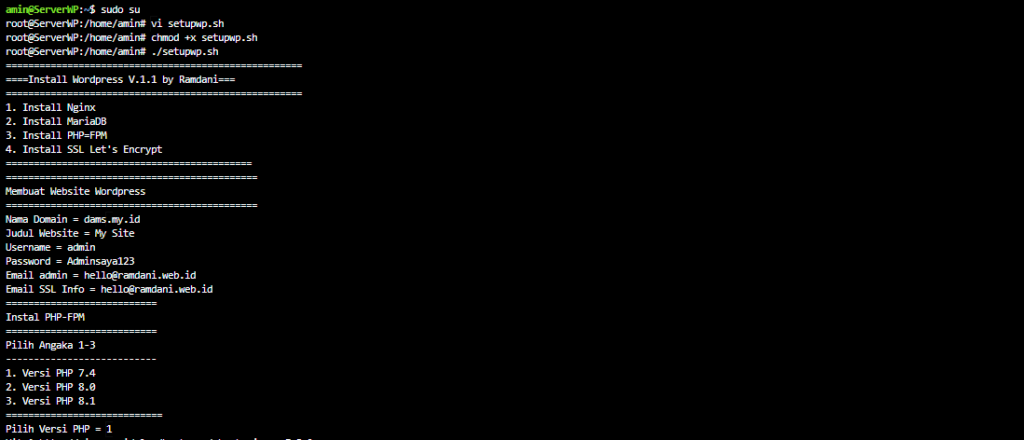
Next, fill out the form according to the domain name data, etc. Wait for the process to finish, ensuring there are no errors during the process.
2. Installation Process Completed
Since the process takes quite a bit of time, it will be skipped until the process is complete.
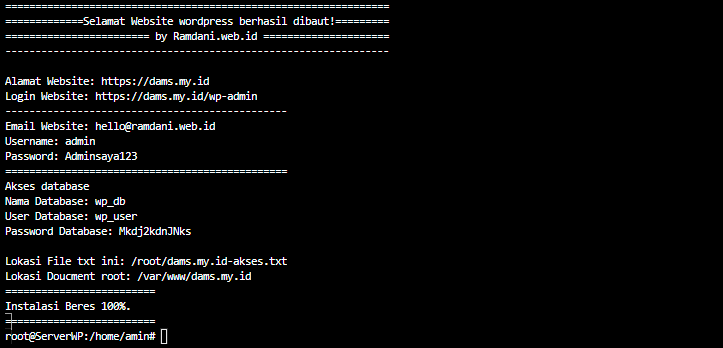
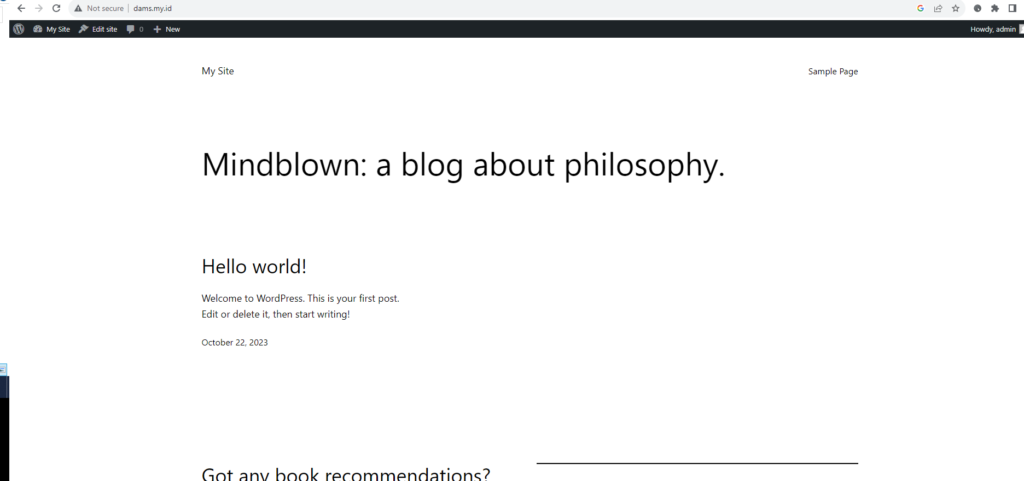
In the image above, once completed, your WordPress access information will appear. You can access the website directly as WordPress has been installed.
If you have any questions, you can comment below.
Bermanfaat gan